
Setup guide
Get your organisation running on Muster
From your invitation to crews taking tasks on their phones, in about an hour. Updated 5 November 2026.
Signing in to the dashboard
The dashboard is where Admin and Office staff run a response: events, tasks, people, forms and approvals. It works in any modern browser and is built for a desktop or laptop.
- Open the link in your welcome email. It takes you to the dashboard sign-in.
- Enter your organisation code (it's in the welcome email, and it's the short name we set up for you), then your email and password.
- Forgot your password? Choose Forgot password? on the sign-in page and we email you a 6-digit code to type in with your new password. The email also has a link, if you'd rather do it in the browser.
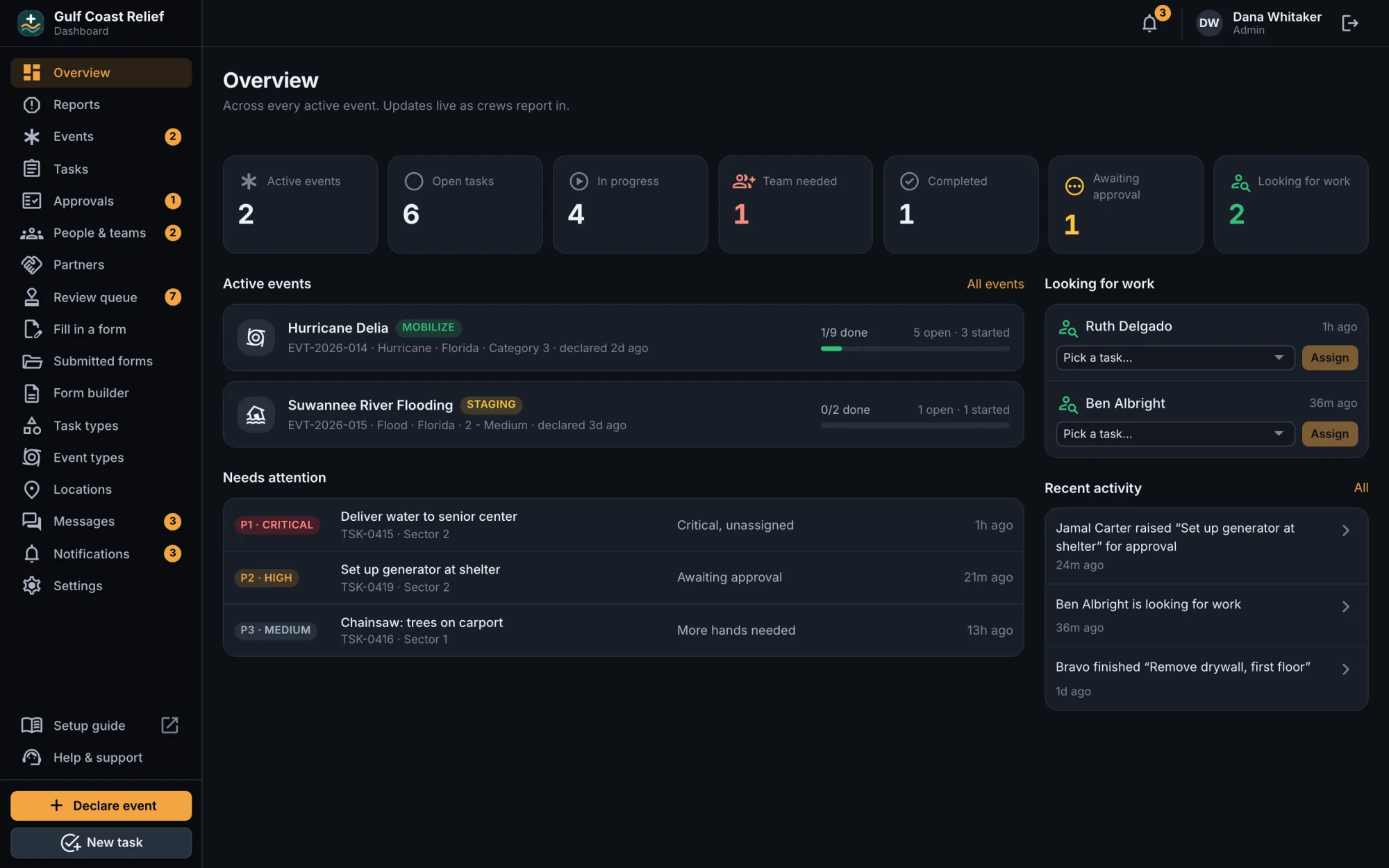
The Overview opens with a Get started checklist. It follows the six steps below and ticks each one off by itself once it's done. If a step doesn't apply to you, choose Mark done. Once all six are done the checklist disappears. You can also hide it sooner.
1. Add your logo and colour
Your logo and brand colour appear on the app's sign-in and home screens and in the dashboard, so crews know they're in the right place. Email hello@muster-volunteer.com with:
- a square logo as a PNG, JPEG or WebP, about 512 pixels across and under 256 KB;
- your brand colour as a hex code, for example
#0e7490.
We add them for you, and they show up the next time people open the app or the dashboard.
2. Add teams and their leads
A team is a crew that goes out together. Its lead takes tasks for the team, files status reports, and recommends tools. Go to People & teams → Teams, name a team (say, Chainsaw crew 1), and pick its lead. A lead has to have an account first, so if they're not on the list, add them under People (step 3) and come back.
The speciality field (Chainsaw, tarping) helps you match teams to jobs later.
3. Add your people
Muster is invitation only: nobody can join your organisation unless you add them. Under People & teams → People, choose Add person:
- Enter their name and email, choose a role, and put them on a team if you like.
- Muster suggests a strong password. Keep it or type your own.
- After you save, the password is shown once. Pass it on with your organisation code, by text or in person. They can change it later with Forgot password? on the sign-in screen, or you can set a new one for them.
To reset someone's password later, choose Set password on their row (an Admin's password can only be set by another Admin). The checklist ticks this step off once you've added someone with the User role: the crew who take tasks.
4. Make task types and forms your own
Every organisation starts with a working set: a standard task, and forms for timesheets, incident reports, equipment requests, personnel status and job completion. Change what doesn't fit.
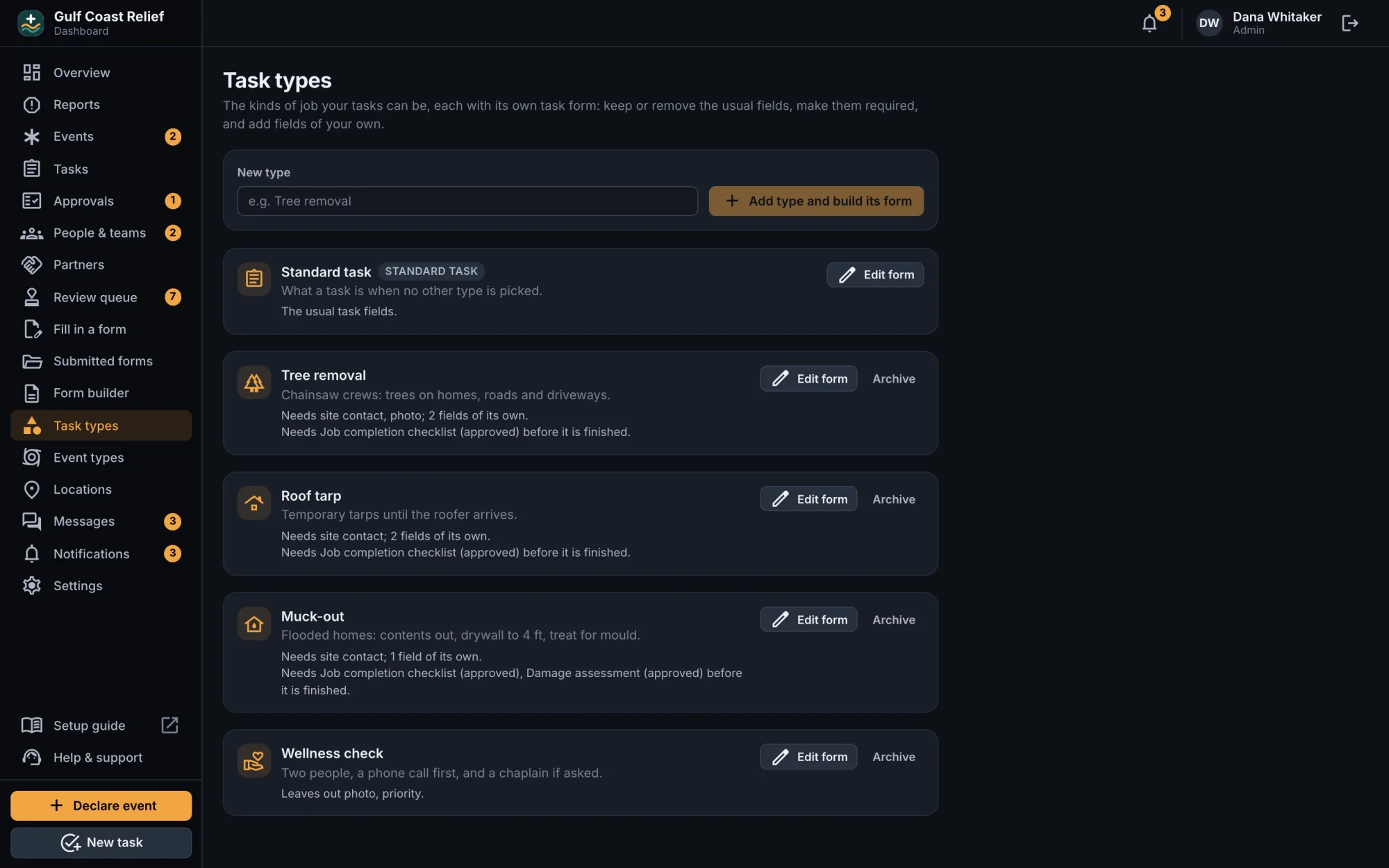
Task types
A task type is a kind of job, such as Tree removal or Mucking out. Each one has its own task form: keep, require or hide the usual fields (description, location, site contact, photo, priority, team size), add fields of its own, and list the forms a task must have before it can be finished.
Forms
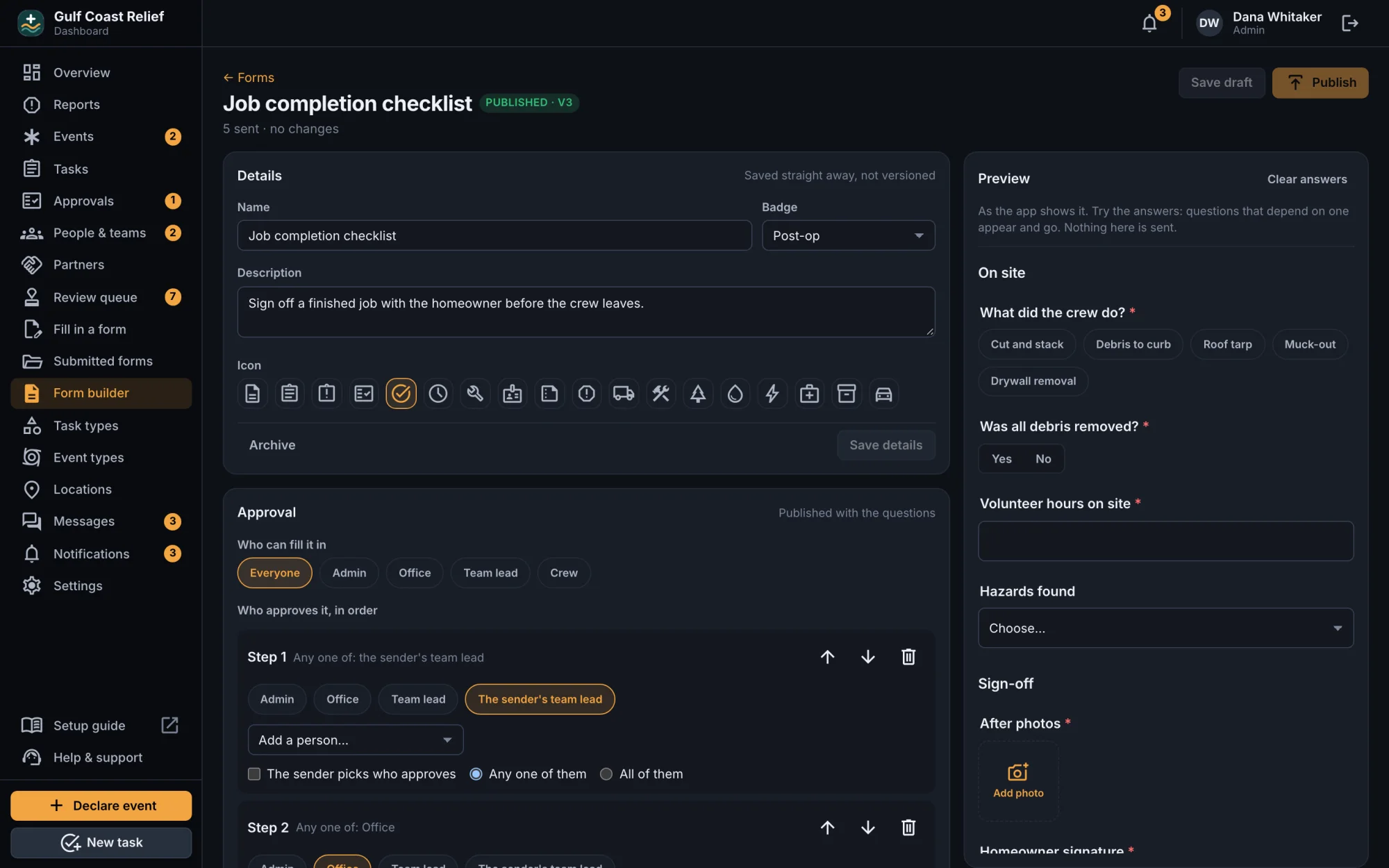
Forms are what people fill in on the app. Open Form builder, start a form, add questions (text, choices, dates, photos, signatures and more), and choose Publish. The app only shows published forms. Editing a published form makes a new version, and anything already sent stays as it was.
5. Declare your first event
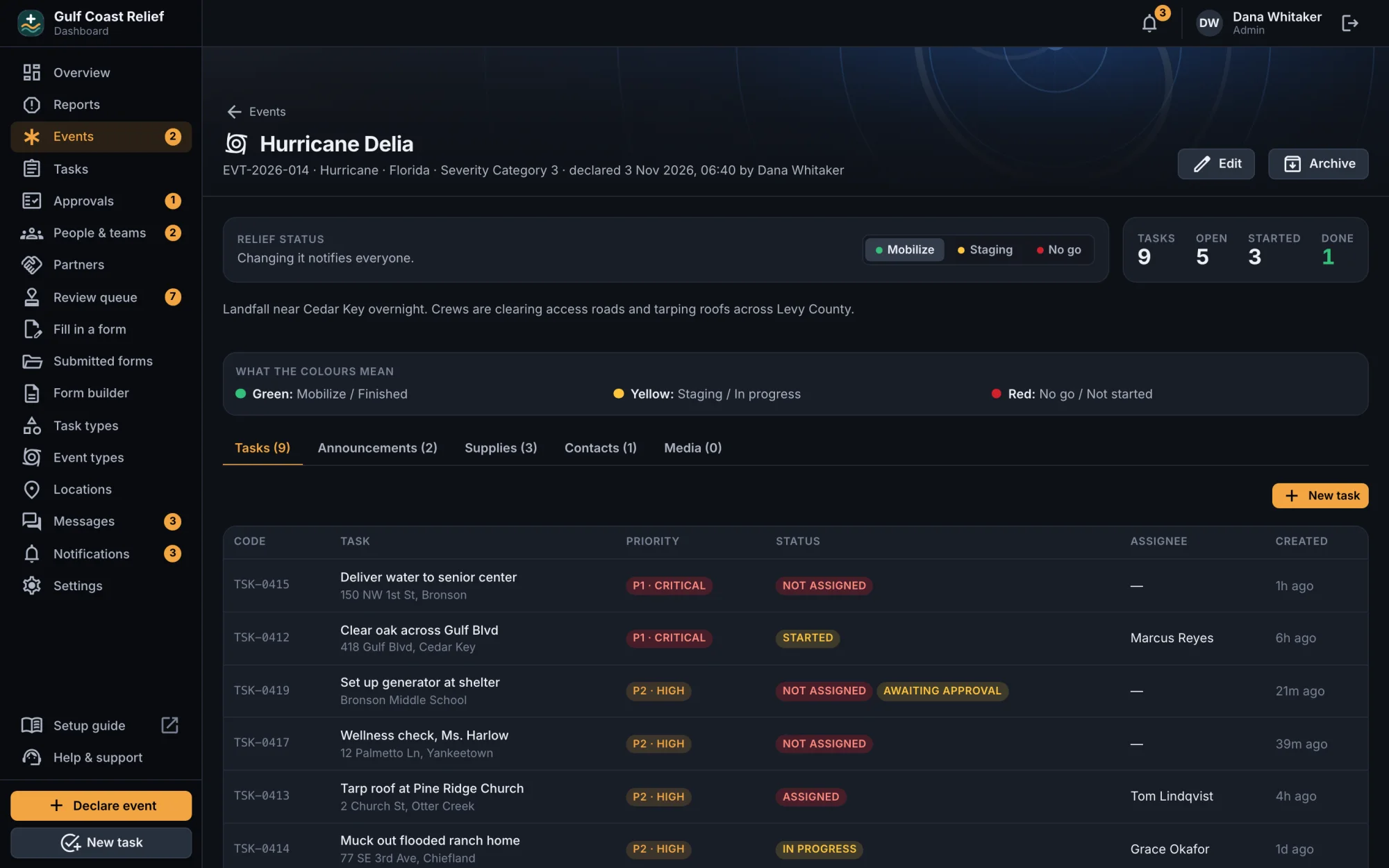
An event is a response: a storm, a flood, a cleanup day. Everything else belongs to an event: tasks, announcements, supplies, contacts and photos. Choose Declare event, give it a name, type, region and severity, and save. Everyone in your organisation gets a notification.
Then add its tasks (New task): a title, an address, a priority and a type. Tasks you create are approved straight away. Tasks raised by crews on the app wait under Approvals until an Admin approves them.
A practice event is a good way to try things out with a few people before a real response. Archive it when you're done.
6. Get crews on the app
Crews use the Muster app on iPhone and Android. Send everyone these steps:
- Install Muster from the TestFlight (iPhone) or Google Play testing (Android) link we send you. Public App Store and Google Play listings are coming.
- Open it and enter your organisation code.
- Sign in with the email and password you were given.
- When the app asks, allow notifications. That's how new tasks and messages reach you.
The checklist ticks this step off once someone has signed in on a phone and allowed notifications. Admins and Office can use the app too, alongside the dashboard.
Roles
| Role | Who it's for | What they can do |
|---|---|---|
| Admin | Whoever runs the response | Everything: declare events, create and approve tasks, assign work, manage people, roles and teams, build forms and task types, post announcements, and review reports. |
| Office | Coordinators and back-office staff | The dashboard, to run the work: declare events, create, assign and finish tasks, add people and set their passwords, and review forms routed to them. They can't approve tasks raised by crews, change roles, or edit forms and task types. |
| Team lead | The lead of a crew | The app: takes tasks for the team and receives assignments, updates progress, files status reports, recommends tools, comments and posts. |
| User | Field crew | The app: takes and works tasks, comments, fills in forms, posts to the board and chats. |
Only Admins and Office can open the dashboard. Change someone's role on the People page.
How crews take a task and report on it
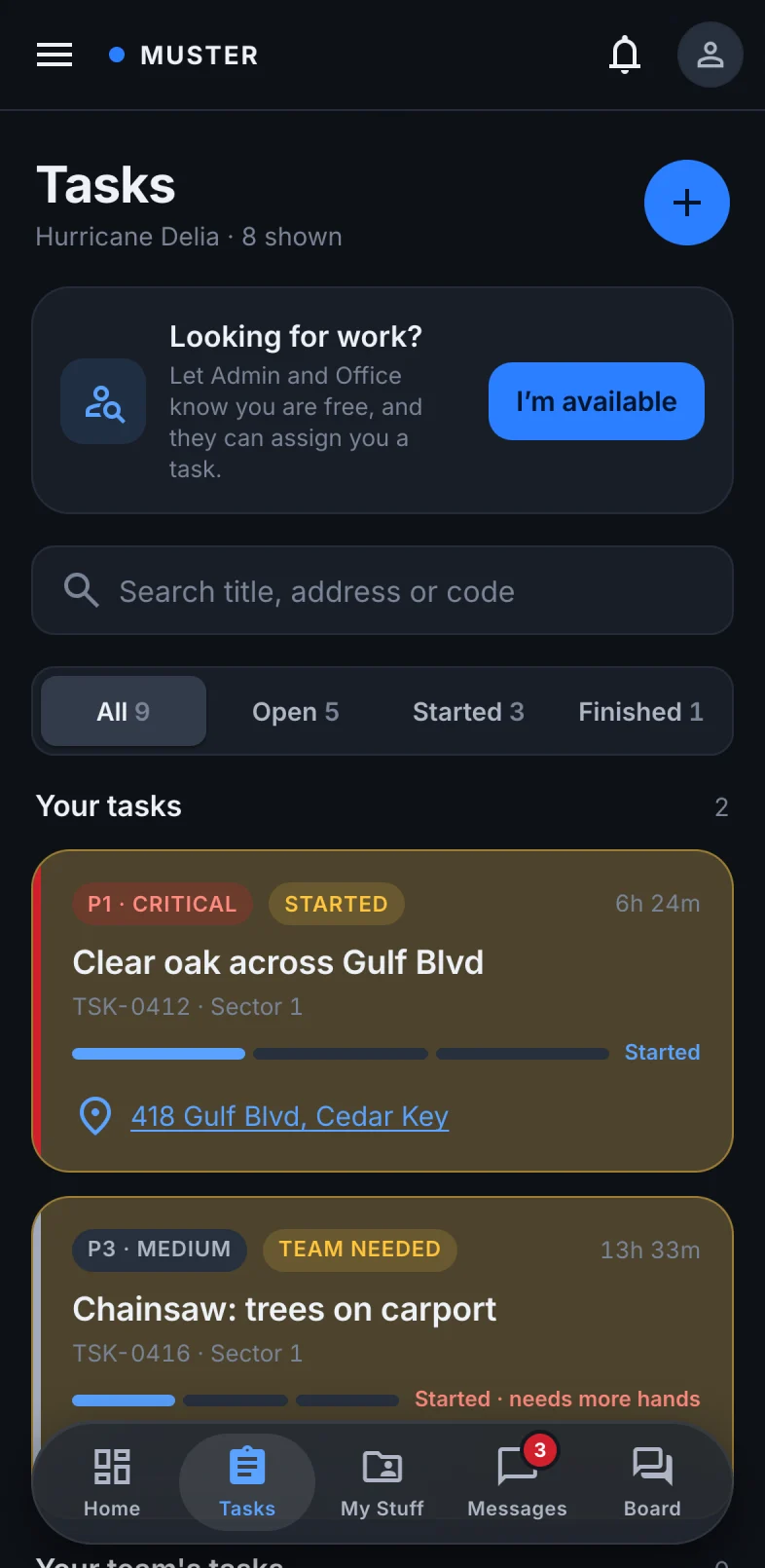
- Find work. The Tasks tab lists the crew's own tasks, their team's, and Available to take. Anyone free can also tap I'm available (under Looking for work?), which tells Admin and Office, who can hand them a task from the Overview.
- Take it. Open a task and tap Take this task. It's now theirs, and everyone can see who has it. An Admin or Office user can also assign it to a person or a team.
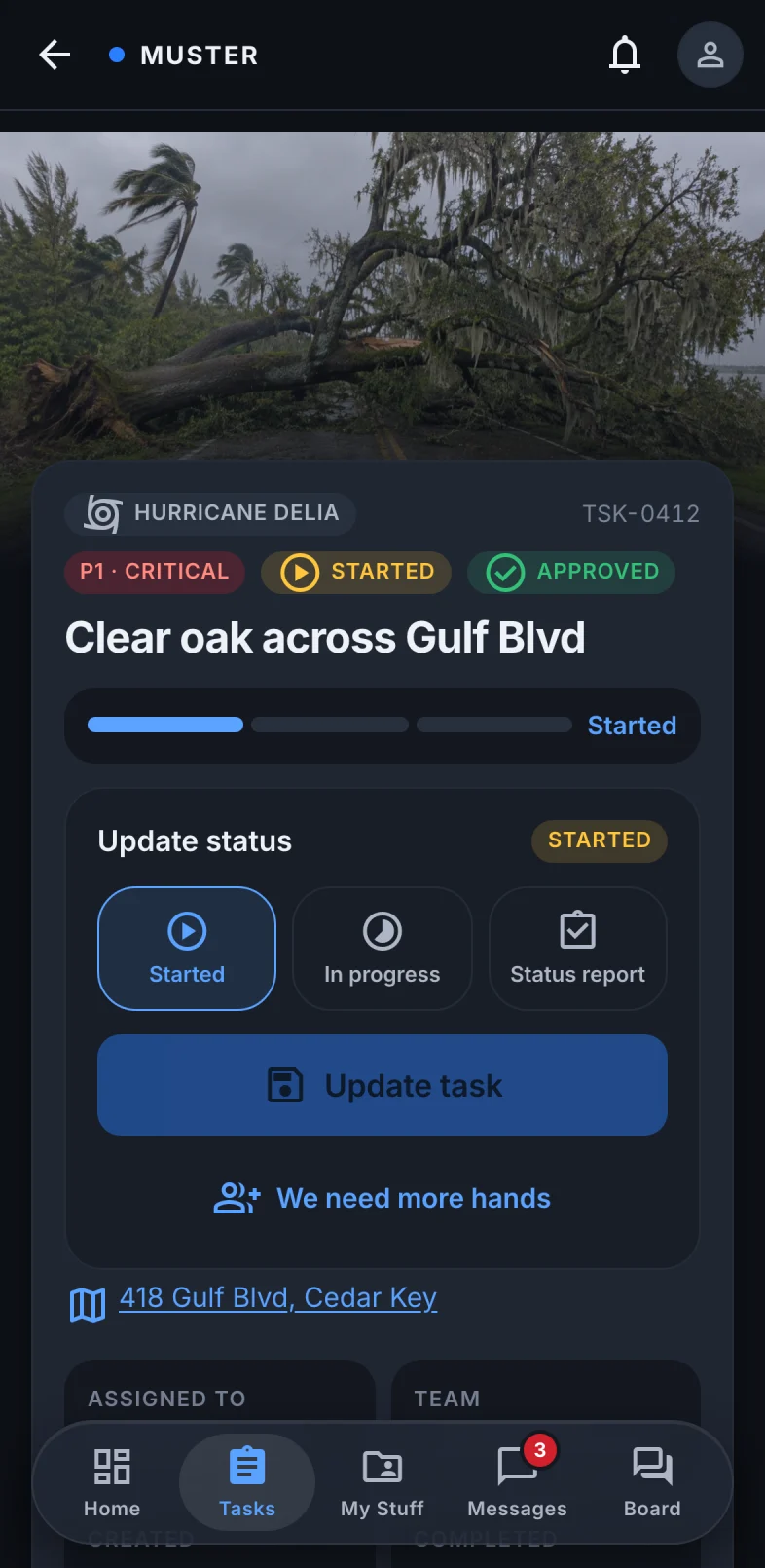
- Keep it up to date. Under Update status, they pick Started or In progress and tap Update task. We need more hands flags the task as Team needed on the dashboard.
- File a status report. When they finish for the day, or the job is done, they pick Status report and fill in what was done, how many were on site and the hours worked. If the job is done, they mark it as a completion report. Photos and comments go on the task too. Admins get a notification (Office too, for a completion report) and decide: mark the task Finished, or leave it open for the next crew. Only Admin and Office close a task.
- Fill in required forms. If the task's type requires forms (for example, a job completion checklist), the task can't be finished until they're sent.
The dashboard updates live as crews report in. Tasks that need a decision show under Needs attention on the Overview.
How notifications work
Muster sends a push notification to a person's phone when something needs them, and keeps a copy in their in-app inbox (the bell):
- a task is assigned to them, or taken over from them;
- a task they raised is approved or rejected;
- someone comments on their task, or tags them with
@; - a new event is declared, its status changes, or an announcement is posted;
- a message arrives in one of their chats (a push only: the chat itself is the record, so nothing goes in the inbox);
- a form they sent is approved, rejected or sent back; or (reviewers) one is waiting for them.
Admins also hear about new tasks waiting for approval and about status reports. Admins and Office both hear about completion reports, people looking for work, and anything reported as inappropriate.
Pushes only reach phones where the person allowed notifications. If someone isn't getting them, check that notifications for Muster are on in their phone's settings, then sign out of the app and back in. Nobody is notified about their own actions.
Getting help
Choose Help & support in the dashboard sidebar, or in the app under Profile → Help. It opens an email to us with your organisation, app version and device already filled in. You can also write to hello@muster-volunteer.com or book an onboarding call. More on the support page.